
Quick guide
Talent+ · Your next professional opportunity
Create your profile, explore opportunities and choose when to introduce yourself to SpCCJ corporate members.
Screenshots use fictional people and companies. Select an image to enlarge it.
Create your Talent+ account
Enter your name, email and a password of at least 12 characters. Read the privacy notice, tick the consent box and press Create account.
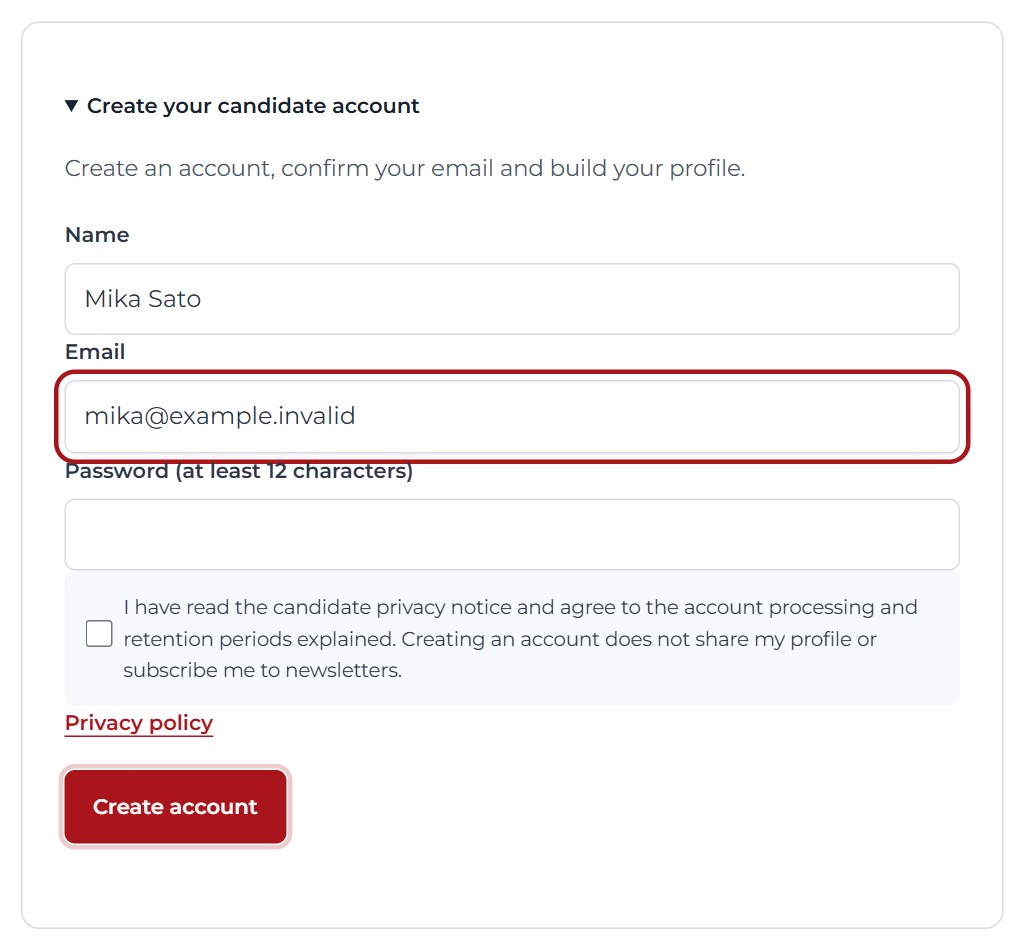
Enlarge screenshot ↗ More details
Open the candidate portal and enter your name, email and password. Read and accept the candidate privacy notice. Registration is free; it does not make you a Chamber member, publish your profile or subscribe you to newsletters.
Check your inbox
Open the Talent+ email and follow its confirmation link within 24 hours. Check spam if needed. If asked to sign in, use the account you just created.

Enlarge screenshot ↗ More details
Open the Talent+ verification email and follow its link within 24 hours. If you continue in the same browser, the verified session may take you straight to your profile. Otherwise, sign in. You can request another verification email from the portal.
Tell companies about yourself
Add a professional headline and a short introduction. Complete the required contact, professional field, experience and availability fields; save privately while you work.
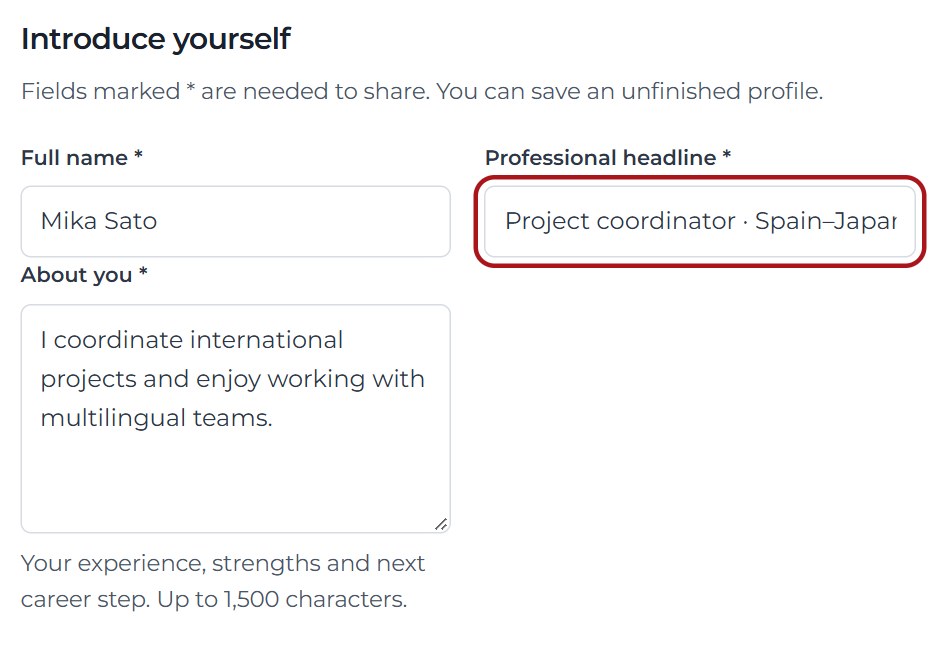
Enlarge screenshot ↗ More details
Complete your introduction, professional headline, contact email, professional field, experience and availability. Add useful skills, languages, city/country or LinkedIn if you wish. Save privately while preparing it; avoid identity documents and your home address.
Choose when to share
When your profile is ready, read and tick the sharing consent and press Share / renew for three months. Your profile becomes available to authorised corporate users in Japan or Spain.
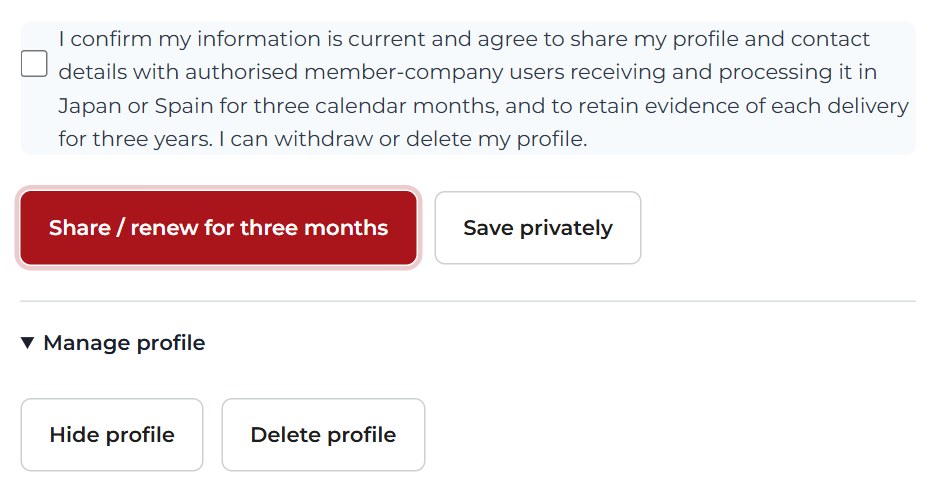
Enlarge screenshot ↗ More details
Review the sharing consent and choose Share. Eligible corporate users accessing from Japan or Spain can then see your profile and shared contact details. Sharing lasts three calendar months. Signing in alone does not renew it.
Manage your visibility
Open Manage profile to hide or delete it. Hide profile stops sharing; Delete profile removes it. Save privately also hides a profile you previously shared.
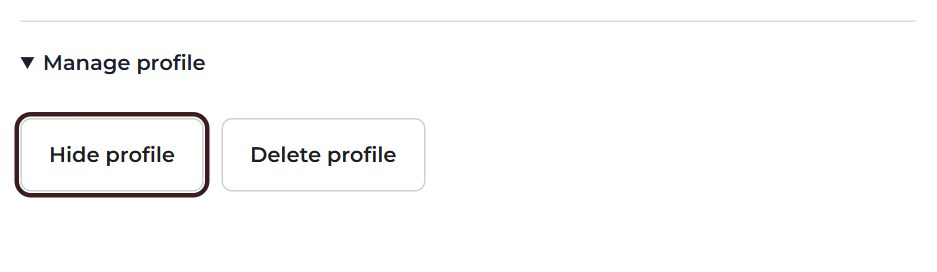
Enlarge screenshot ↗ More details
Return to your profile to update or renew it. Save privately or use Hide profile to stop sharing; Delete profile removes it. To apply for a vacancy, follow that listing's application instructions separately.
Common questions
I have not received the verification email
Check your spam folder and that you entered the right address. Request a fresh verification email from the portal and use the latest link. If it still does not arrive, contact Secretariat; never send your password or verification code.
Can I sign in without my password?
Verified eligible candidate accounts can use Sign in with an email code. Request it using your account's email and enter the eight-digit code within ten minutes. Password recovery is also available. Administrative accounts use their separate security process.
What does a private profile mean?
Corporate members cannot see it. You can finish it at your own pace and choose to share later. Saving privately also hides a profile that was previously shared. Your contact email is shared only when your profile is shared.
Will I automatically receive job alerts?
Creating an account or sharing a profile does not subscribe you to recruitment newsletters. The Chamber's general newsletter is also separate. Ask Secretariat about currently available recruitment notifications.
What happens if I stop using my account?
Sharing expires after three calendar months unless renewed. Candidate-only accounts and their profiles are deleted after more than six months without access; member and administrative accounts are excluded. See the privacy notice for the full retention rules and how to exercise your rights.