
Quick guide
Conecta+ · Share your expertise
A practical guide to creating and managing your personal expert profile within the SpCCJ community.
Screenshots use fictional people and companies. Select an image to enlarge it.
Open your expert profile
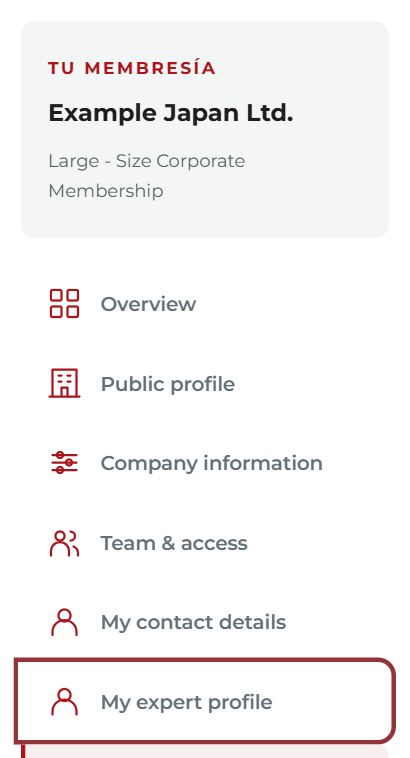
Sign in to Member Area and choose My expert profile. Use the account linked to your active membership.
Enlarge screenshot ↗ More details
Sign in to Member Area and open Conecta+. Your account must be linked to an eligible active membership. Corporate memberships can have up to five expert profiles; Professional memberships, one. Young memberships do not include this service.
Invite a colleague — corporate members
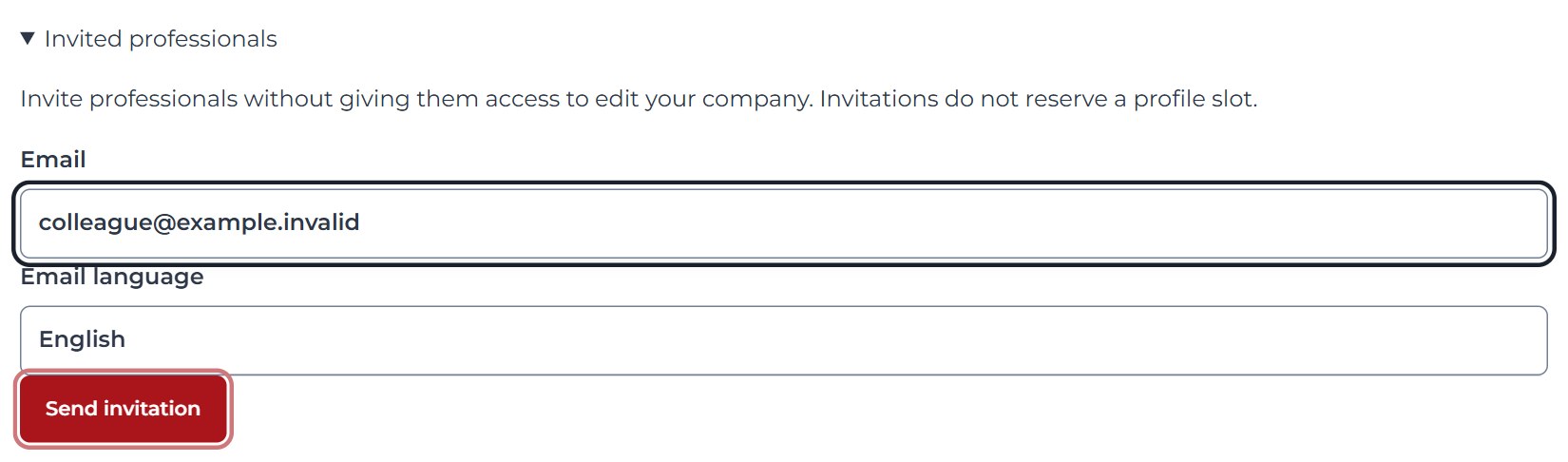
Open Invited professionals, enter your colleague’s email, select the email language and press Send invitation. Your colleague must accept personally.
Enlarge screenshot ↗ More details
If you manage a corporate membership, use its invitation section. Each professional follows their invitation, signs in or creates the linked account, and accepts personally. The invitation expires after seven days. It does not give permission to edit the company profile.
Introduce your expertise
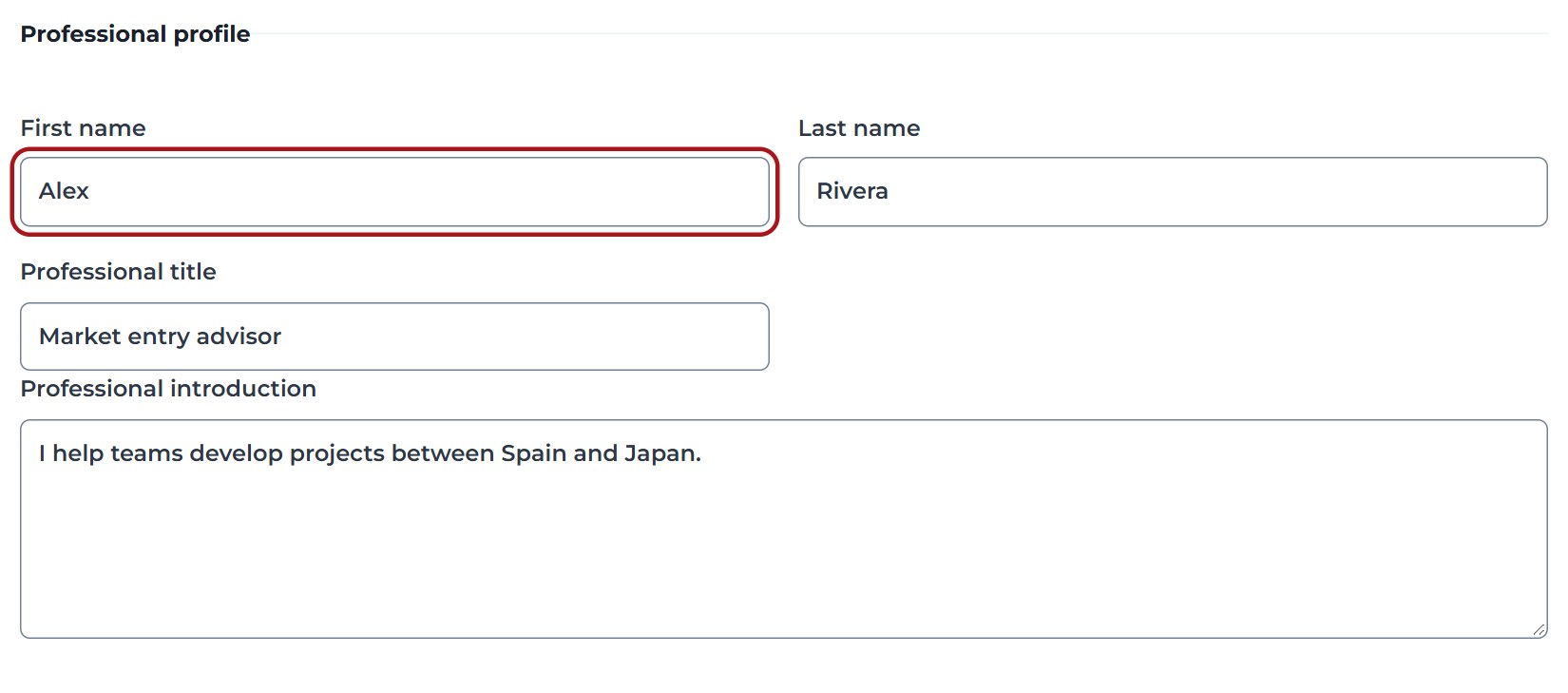
Complete your name, role and professional introduction. Choose your industries and specialties so people can find your expertise.
Enlarge screenshot ↗ More details
Add your name, professional introduction, specialties and the contact details you wish to make public. Check the information before publishing. Conecta+ presents people; the company is their affiliation.
Preview, then publish
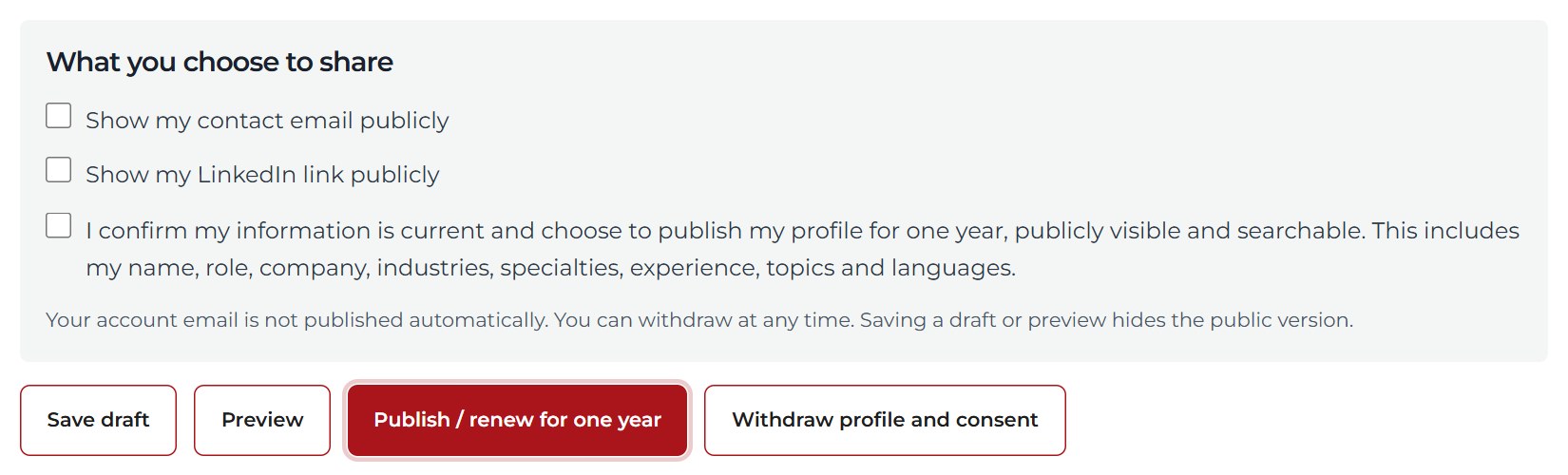
Use Preview to check the result. When ready, choose the contact details you want public, give your publication consent and press Publish / renew for one year.
Enlarge screenshot ↗ More details
Give your own publication consent and use the publication action. Secretariat can review and help edit the profile, but prior approval is not required. Your published profile is public: include only information you want visitors to see.
Update or withdraw whenever needed
Return here to renew your publication or withdraw your profile and consent. Saving a draft or preview also hides a published profile.

Enlarge screenshot ↗ More details
Return to your expert area to edit, renew or withdraw your profile. Publication must be renewed after twelve months and requires an eligible active membership. If membership ends, visibility stops and the profile can be deleted after one calendar month.
Common questions
Can anyone register as an expert?
No. Every expert must be linked to an eligible member account. Corporate invitations are for professionals associated with that company, not an open registration route for outsiders.
Can Secretariat publish on my behalf?
Secretariat can correct profile information without changing the owner or supplying your personal publication consent. You decide whether to publish.
My invitation or membership access does not work
Check that you are using the invited email and the correct account. Ask your company's representative or Secretariat to check the link. Do not create another account just to bypass the issue.
Does withdrawing a profile delete my Chamber account?
No. Expert profile visibility and your Chamber account are separate. Read the service notice for retention and deletion details.